Media Library
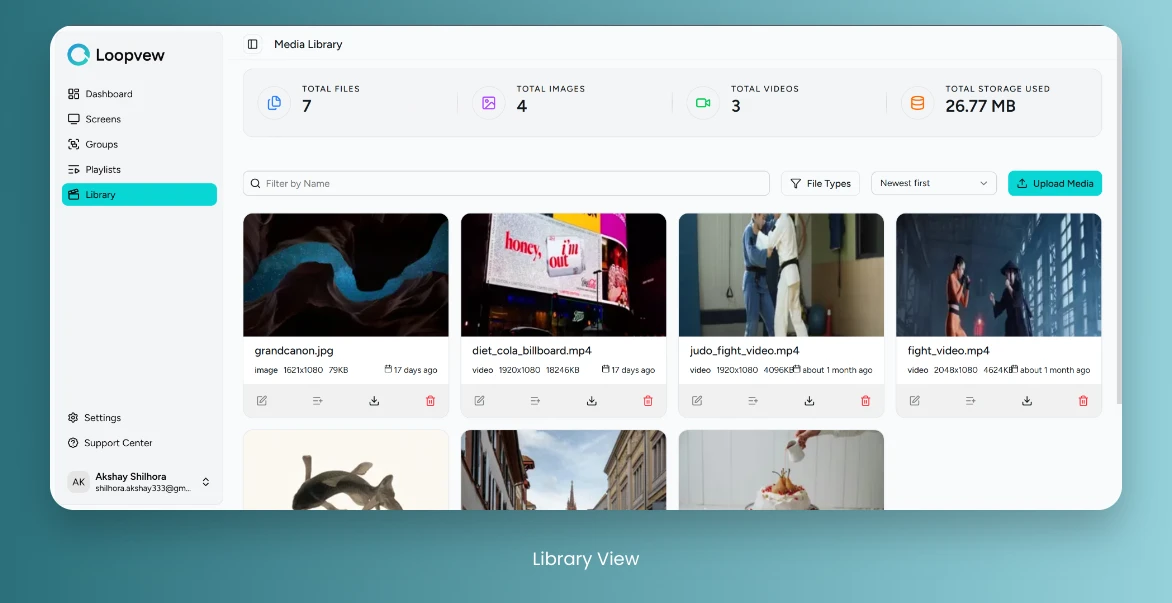
Library Overview
Library Stats: top bar shows the library stats:
- Total Files: Total Number of Media Files.
- Total Images: Total Number of Images.
- Total Videos: Total Number of Videos.
- Total Storage Used: Total storage used by all media files.
Library List Card: list card of all uploads with following details:
- Media Name: Name of the media.
- Media Resolution: Resolution of the media.
- Media Size: Size of the media.
- Uploaded Date: Upload time from today.
- Action: at bottom of the card you have download and delete actions.
View All Media Files
-
Click on the Library tab in the left sidebar.
Upload a File
-
Click on the Library tab in the left sidebar.
-
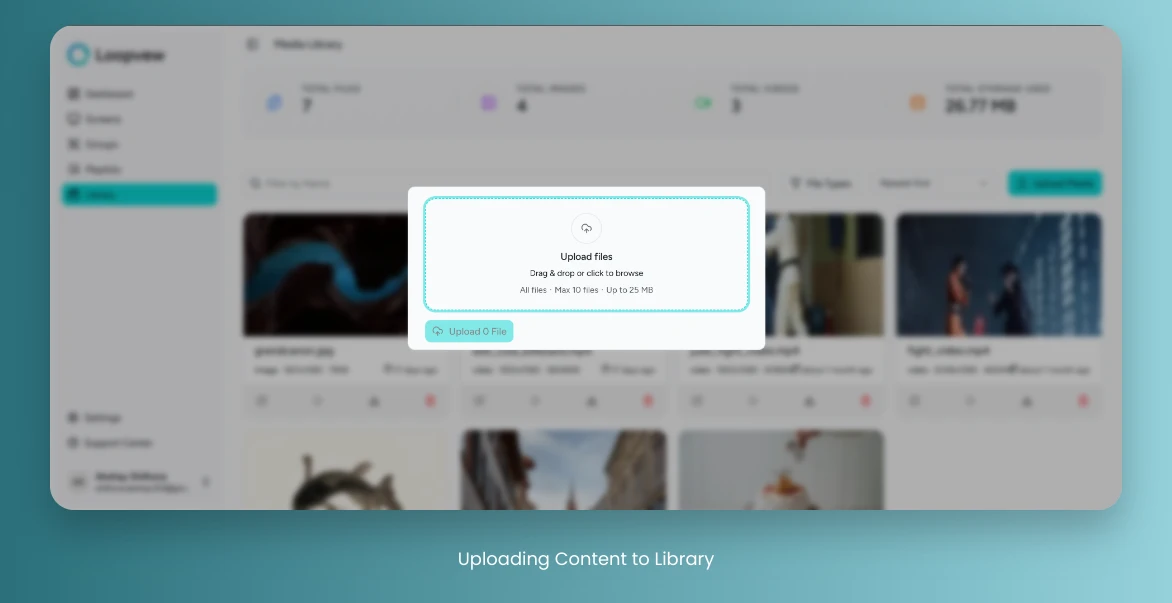
Select the Upload Media button located above list card view.
-
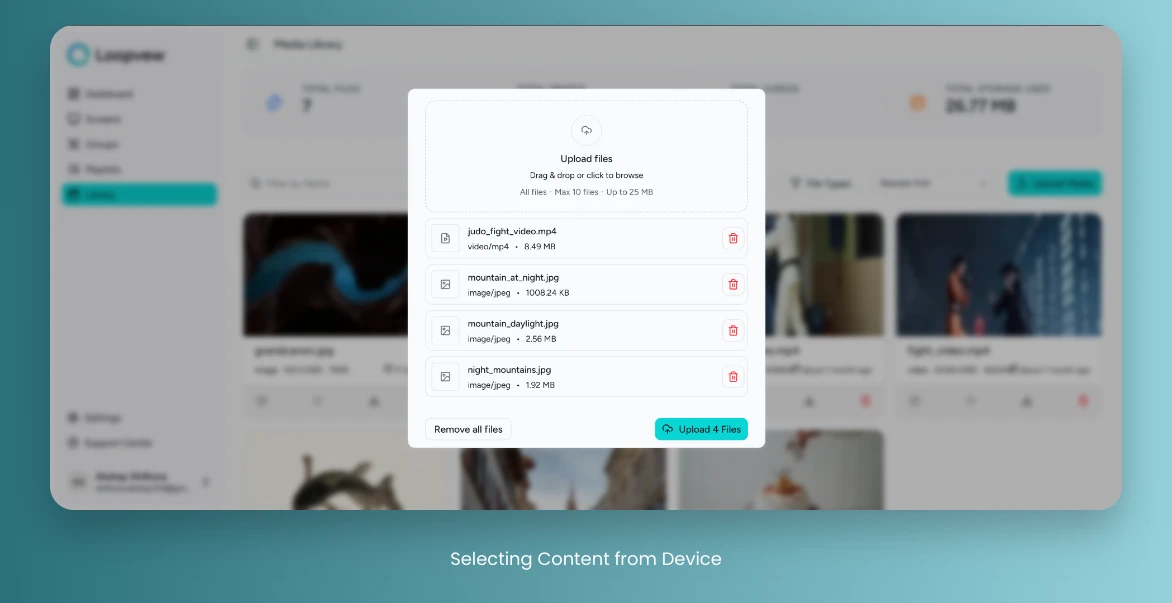
In the pop-up window, you have two options to upload files:
- Drag and Drop: Drag and drop your files into the designated area.
- Browse Files: Click Upload Files to select files from device.
-
Choose the files you wish to upload from your device.
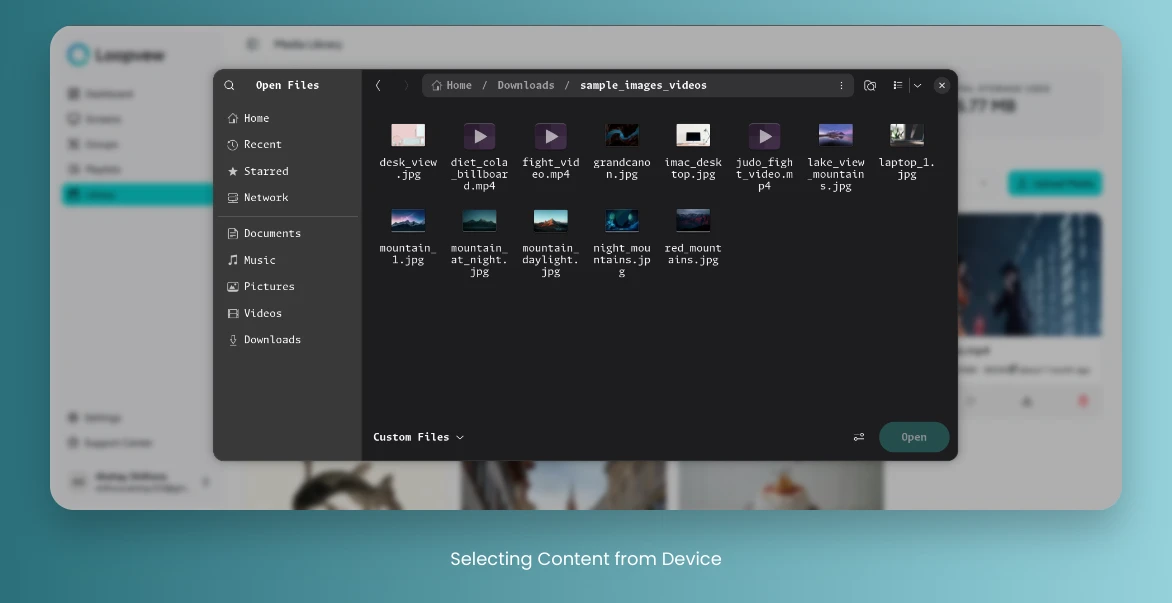
-
Once the file is selected, it will appear in the upload area.
-
Click on the Upload Button to start the upload process.
View Only Photo/Video Files
-
Click on the Library tab in the left sidebar.
-
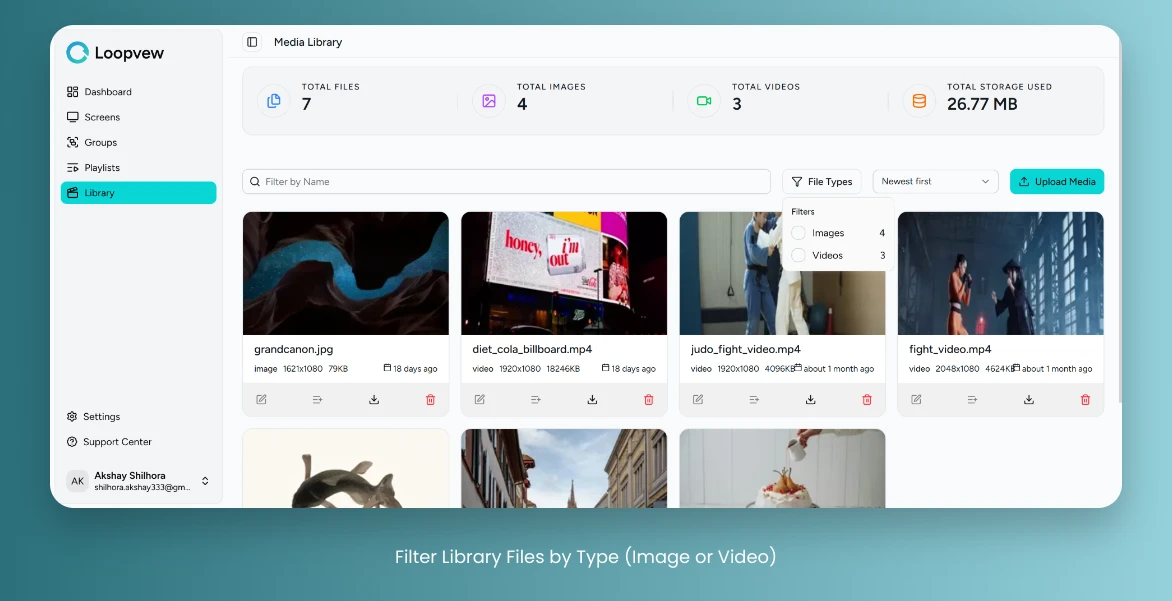
Click on File Types button and select the type.
Search a File
-
Click on the Library tab in the left sidebar.
-
Use the Filter by Name Search input to search for a file by name.
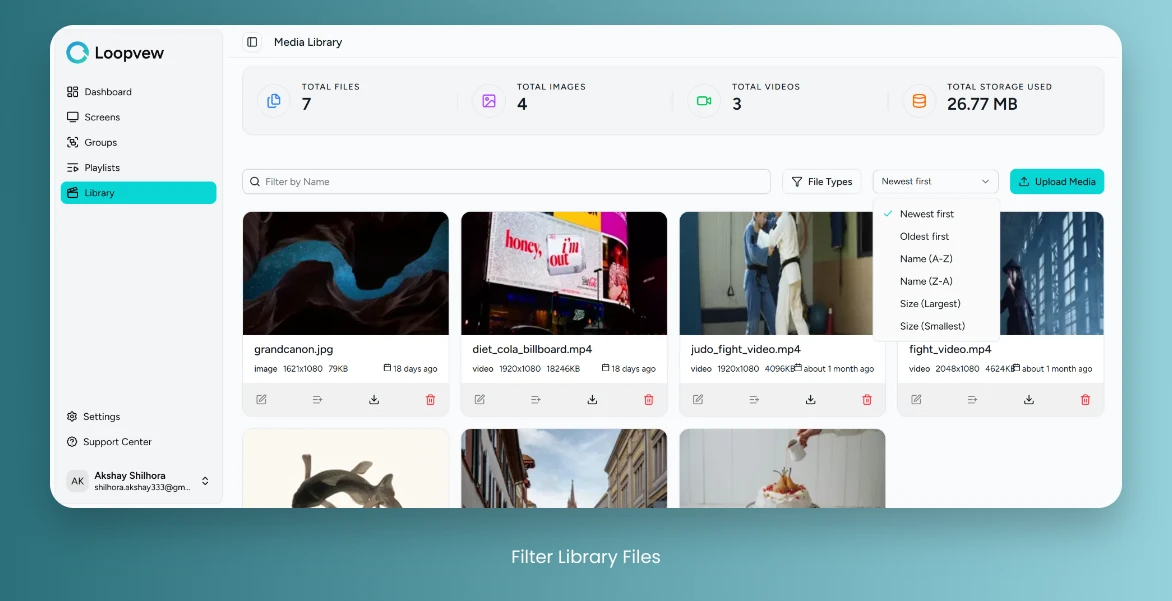
Filter Files by Upload Date and Size, and Name.
-
Click on the Library tab in the left sidebar.
-
Use the Newest First filter located beside the File Types button.
-
Select the desired filter option from the dropdown menu to sort files by upload date, size, or name.
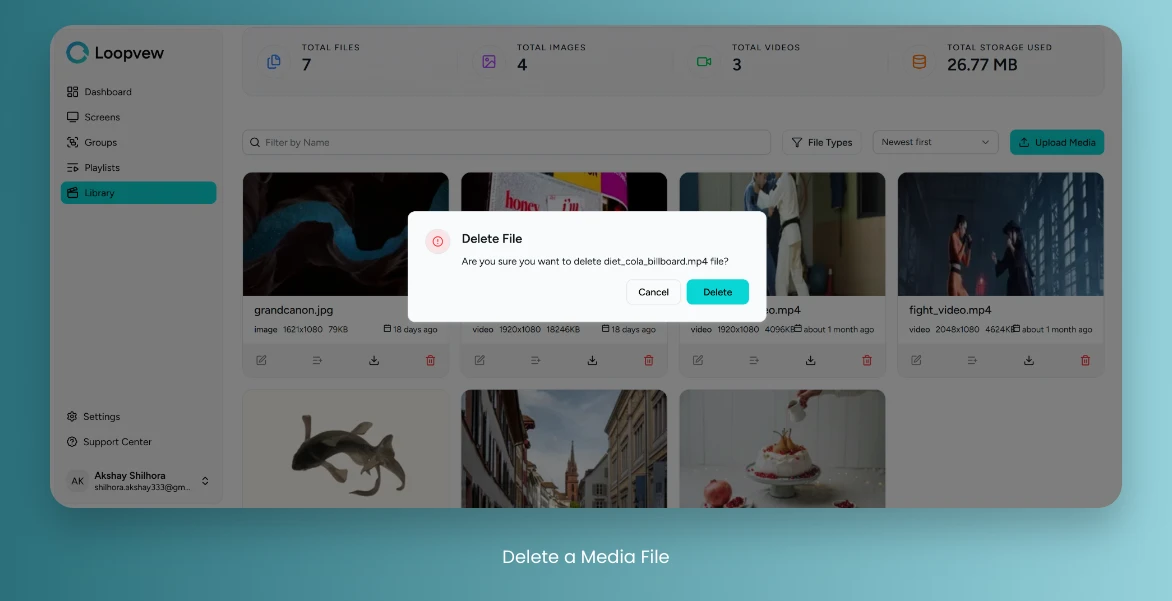
Delete a File
-
Click on the Library tab in the left sidebar.
-
Locate the file you wish to delete.
-
Click on the Delete Button associated with the file.
-
Confirm the deletion by clicking the Delete Button in the dialog.