
Screens
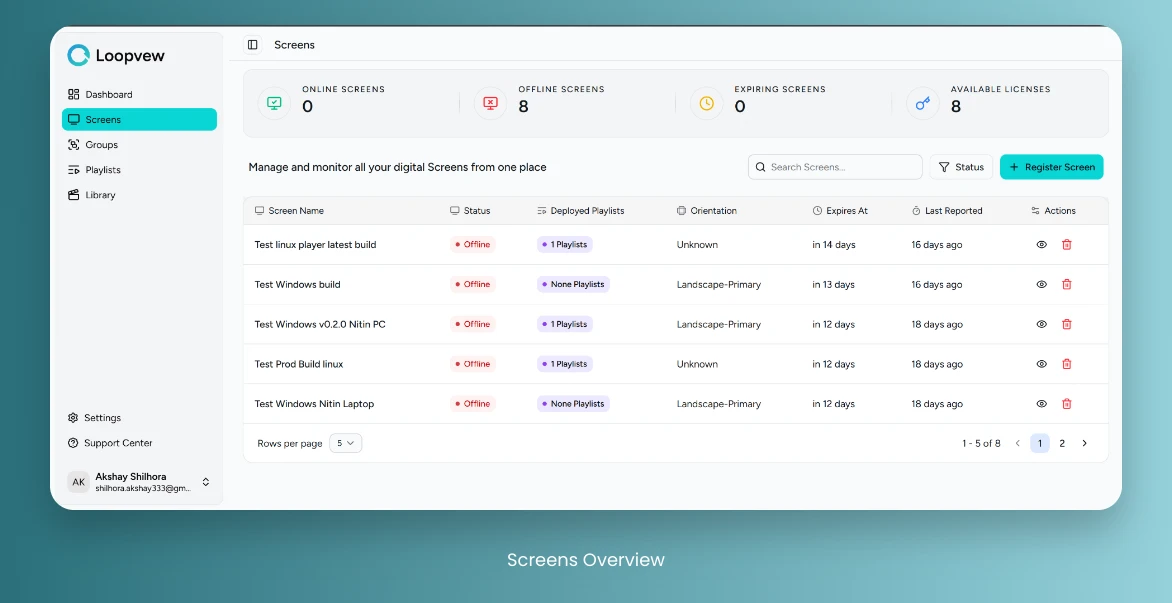
Screens Overview
Screens Stats: top bar shows the screen stats:
- Online screens: Screens that are currently connected to server.
- Offline screens: Screens that are not connected to server.
- Available Licenses: Total number of licenses available.
- Expiring Screens: Screens that will be expiring in next 30 days.
Screens Table: shows the list of all screens with following details:
- Screen Name: Name of the screen.
- Deployed Playlists: No of playlists deployed on the screen.
- Status: Online/Offline status of the screen.
- Orientation: Orientation of the screen.
- Expiry At: Expiry date of the screen license.
- Last Reported: Last reported days from today.
- Action: View and Settings button to manage the screen.
View All Screens
-
Click on the Screens tab in the left sidebar.
Pair a New Screen
-
Go to the Screens tab in the left sidebar.
-
Select the Register Screen button.
-
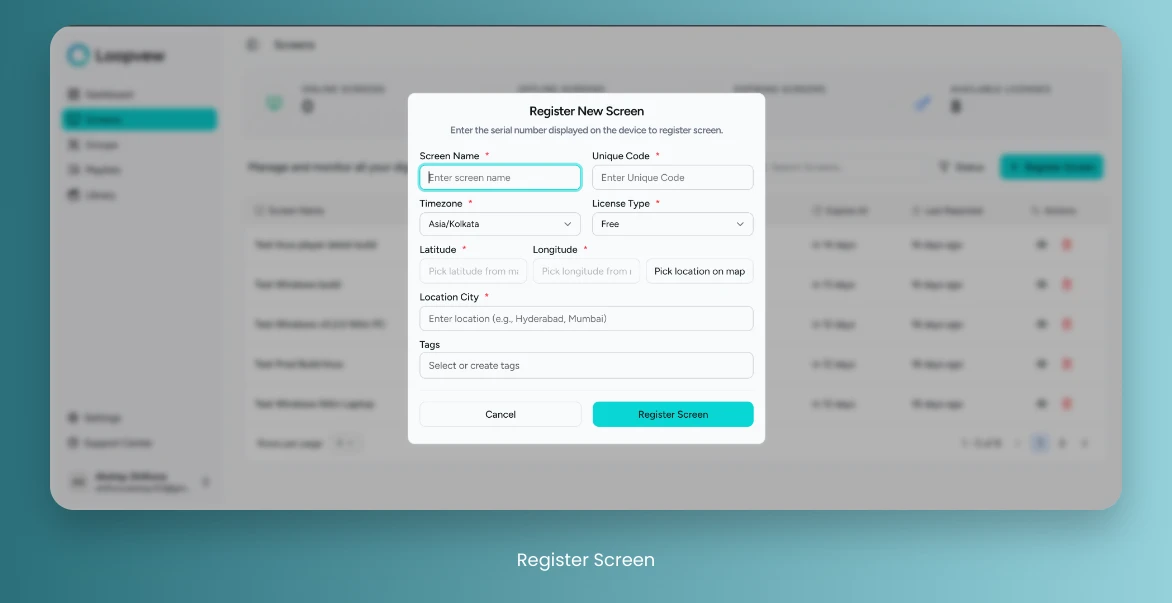
Enter the name of the screen to distinguish from other screens.
- For example: Entrance Display, First Floor Display, or Lift Block B.
-
Enter the 6-digit pairing code displayed on the screen.
- For example: 928721 is the code displayed on the screen.
- Enter the same code in the CMS Register Screen window. `
-
Pick the time zone where screen is located.
- For example: Asia/Kolkata, Europe/London, or Asia/Tokyo.
-
Pick the license Type.
- For example: Free or Paid.
-
Pick the location on maps by clicking on Pick location on map.
-
Enter the name of location city, where screen is located.
-
Optionally, assign some Tags to the screen.
-
After Filling all the details, click on Register Screen.
Check the Online/Offline Status of a Screen
-
Go to the Screens tab in the left sidebar.
- In the Table Section, you can view the status of each screen.
-
In the Action column, click on the View Button for the screen.
-
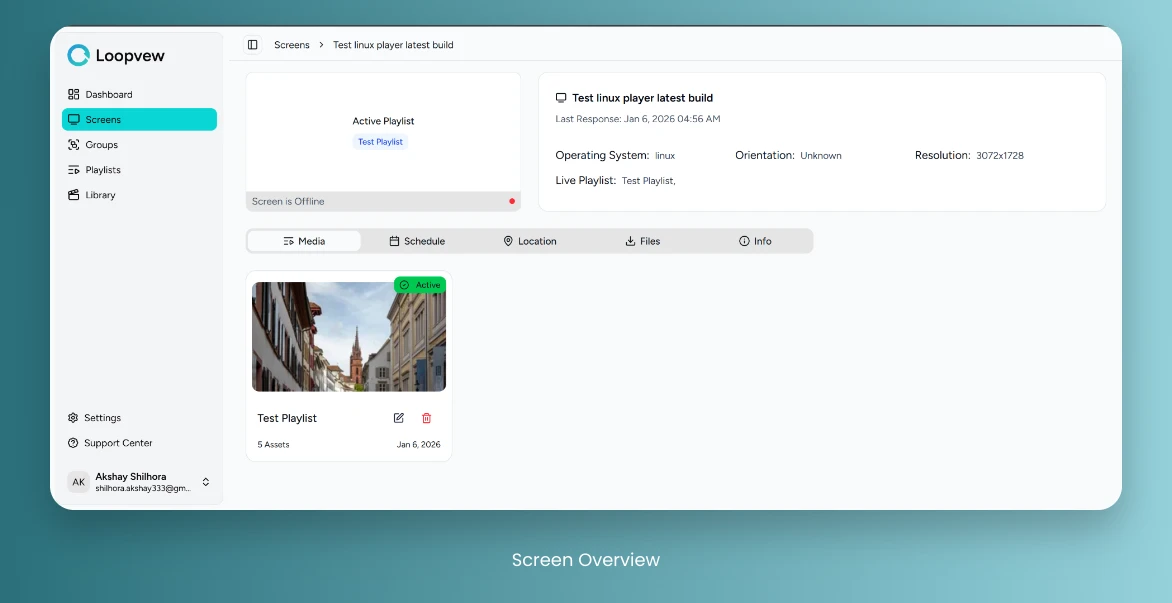
Check the screen status displayed on top right, below active playlists, to see whether the screen is online or offline.
Check Available Licenses
-
Go to the Screens tab in the left sidebar.
- You can view the Available Licenses in screens stats section.
Check Deployed Playlists on Screen
-
Go to the Screens tab in the left sidebar.
-
In the Action column, click on the View Button for the screen.
-
Click on the Media tab to view all deployed playlists on the screen.
View All Schedules
-
Go to the Screens tab in the left sidebar.
-
In the Action column, click on the View Button for the screen.
-
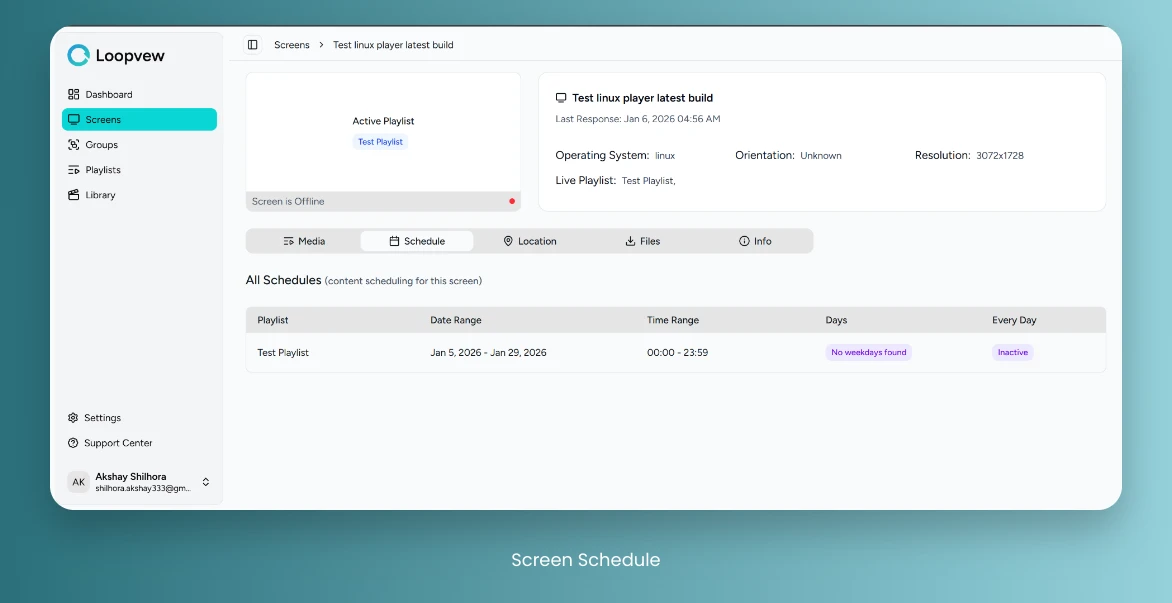
Click on the Schedules tab to view all the schedules on the screen.
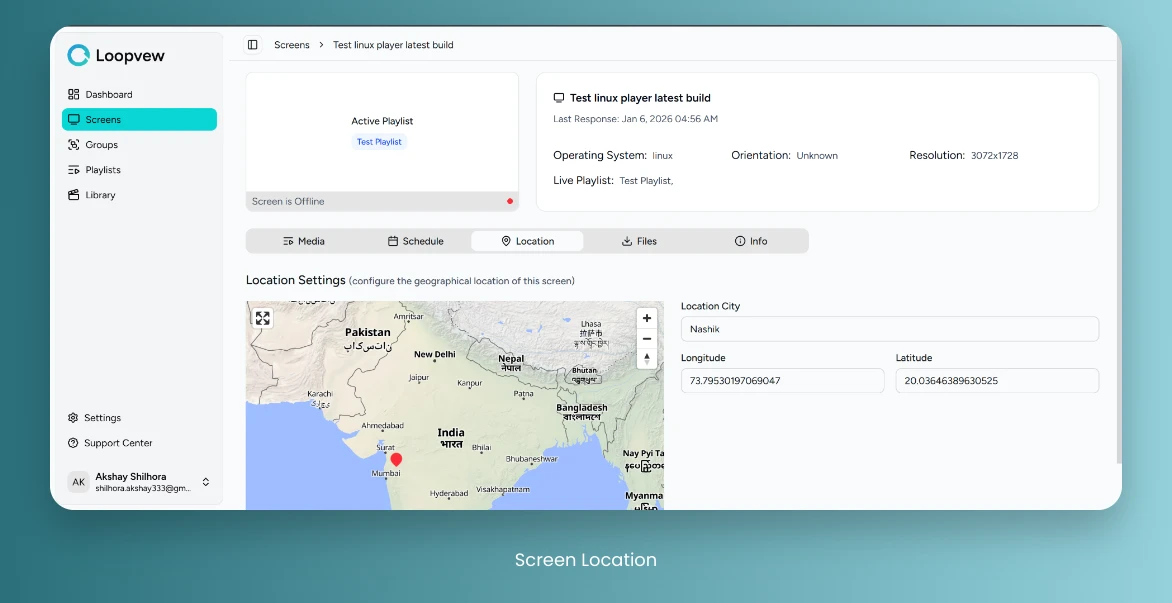
Check Screen Location
-
Go to the Screens tab in the left sidebar.
-
In the Action column, click on the View Button for the screen.
-
Click on the Location tab to view the screen location.
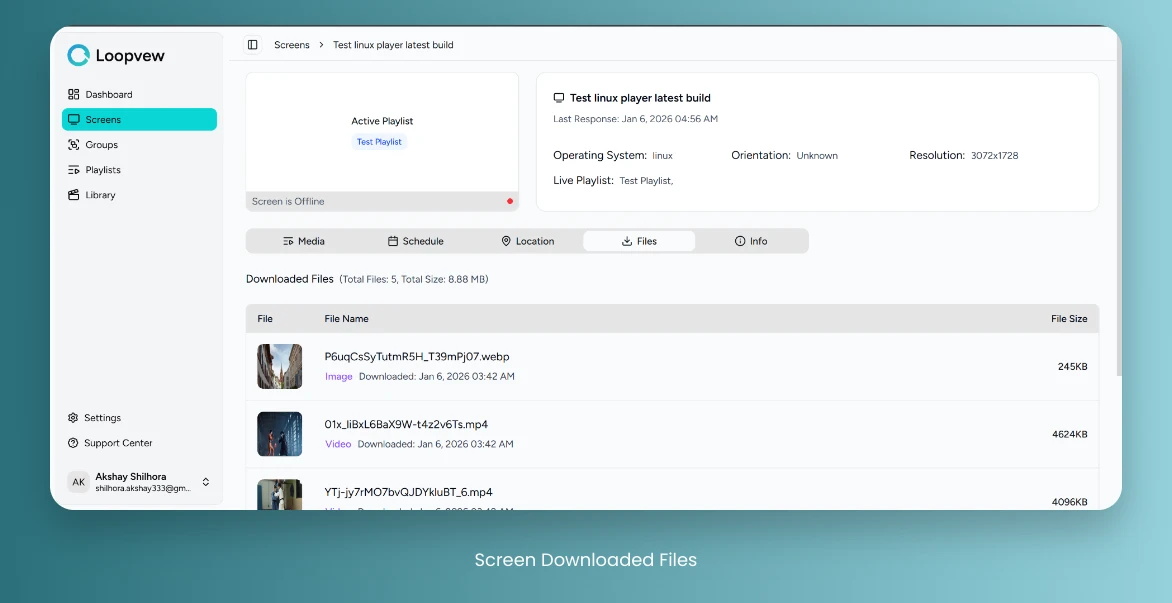
Check Downloaded Files on a Screen
-
Go to the Screens tab in the left sidebar.
-
In the Action column, click on the View Button for the screen.
-
Click on the Files tab to view downloaded files on the screen.
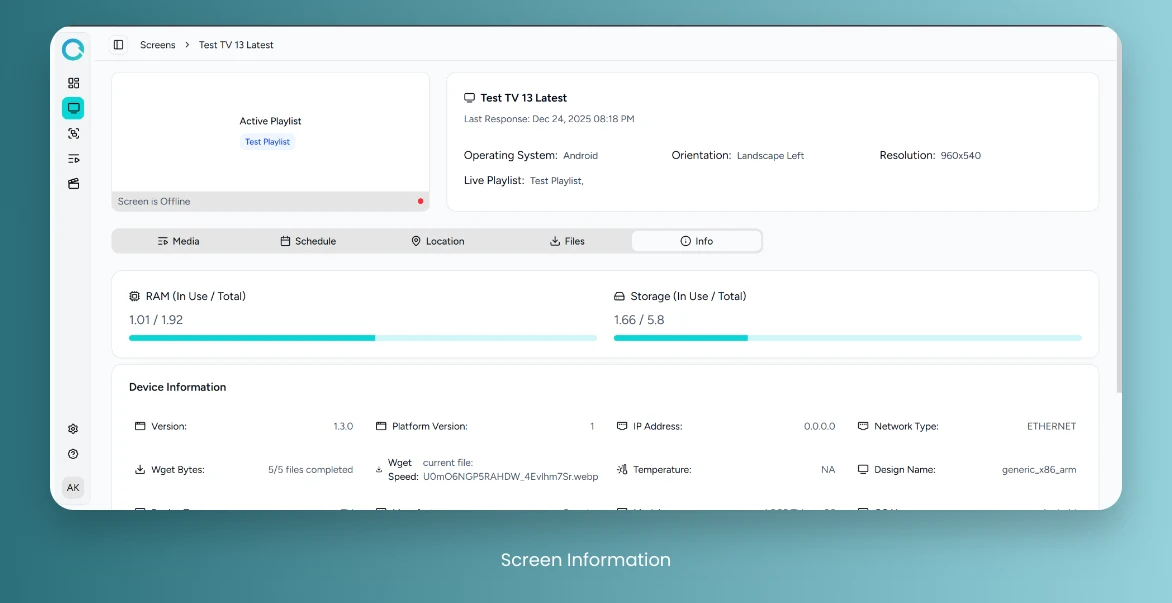
Check Screen Info
-
Go to the Screens tab in the left sidebar.
-
In the Action column, click on the View Button for the screen.
-
Click on the Info tab to view screen information.
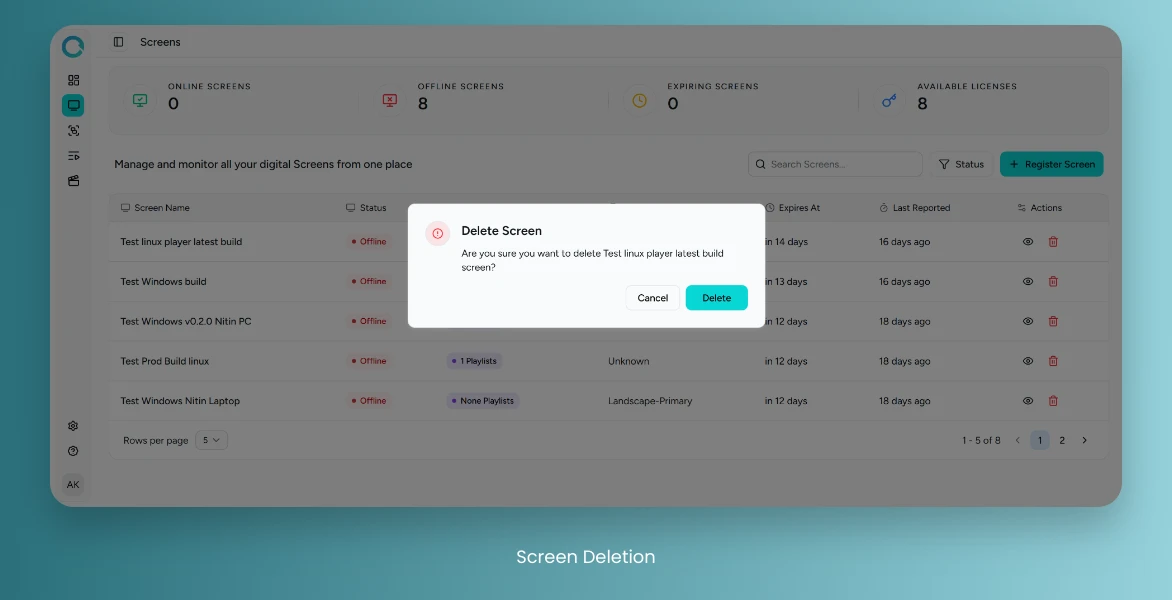
Delete a Screen
-
Go to the Screens tab in the left sidebar.
-
In the Action column, click on the Delete Button for the screen you want to delete.
-
Click on the Delete button to confirm the action.
-
The screen will be successfully deleted and can not be restored later.